
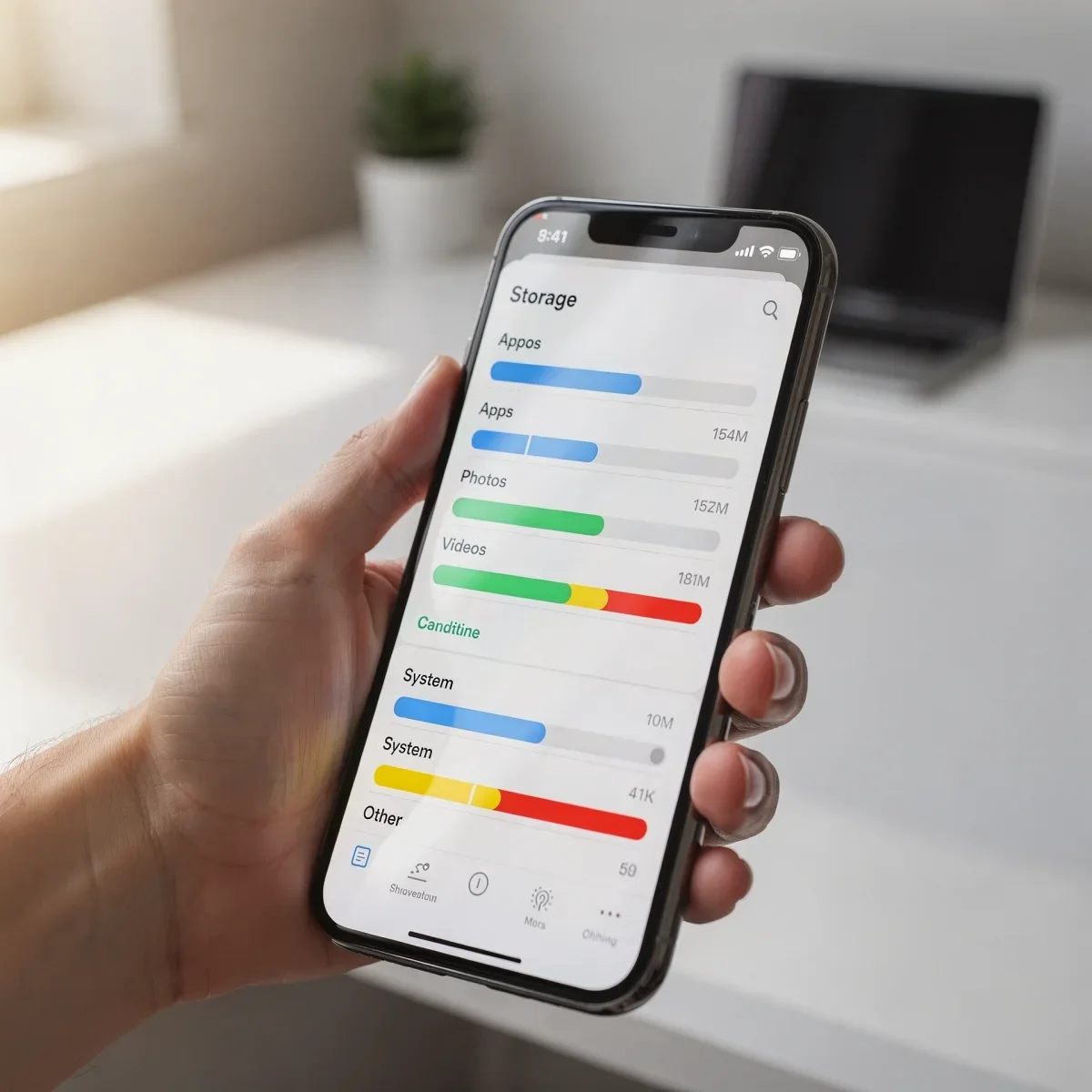
We have all seen that dreaded alert pop up right as we tap the camera button: "Storage Almost Full." Your first instinct might be to scroll through your camera roll and part with cherished memories, but you do not have to sacrifice your pictures. You can quickly free up phone storage by clearing out hidden system clutter, temporary app data, and forgotten offline files.
Advertisements
1. Offload Bulky Apps and Clear Cache Data
Apps often consume far more space through their temporary files than the software itself requires. Social media platforms, browsers, and mobile games quietly hoard gigabytes of cached media on your local drive.
- On iPhone: Head to Settings > General > iPhone Storage. Look for apps you rarely open and tap "Offload App." This removes the app installation to save space while preserving all of your personal documents and data for when you reinstall it.
- On Android: Open Settings > Apps, select high-usage apps like TikTok, Instagram, or Chrome, and tap Storage > Clear Cache. This wipes temporary data without logging you out or resetting your settings.
2. Purge Large Message Attachments
Text message threads are silent storage hogs. Every high-resolution video clip, meme, and audio message sent through iMessage, WhatsApp, or Google Messages sits permanently on your phone until you manually delete it.
On iOS, go to Settings > General > iPhone Storage > Messages to review and delete large attachments like 4K videos and PDFs in one place. You can also set message history to auto-delete after 30 days or one year. For WhatsApp or Telegram, open the app's internal settings, navigate to Storage and Data > Manage Storage, and delete forwarded video files larger than 5 MB.
3. Manage Offline Media and Streaming Downloads
Did you download a dozen podcast episodes for a flight last month or save a movie season on Netflix for a weekend getaway? Offline media files often stay stored on your device indefinitely.
| App Type | Where to Look | Average Space Saved |
|---|---|---|
| Video Streaming (Netflix, Max, Disney+) | App Settings > Downloads | 3 GB – 10 GB |
| Music (Spotify, Apple Music) | Your Library > Downloaded | 1 GB – 5 GB |
| Podcasts & Audiobooks | App Library > Downloaded Episodes | 500 MB – 3 GB |
Take two minutes to open your favorite media apps, delete watched titles, and toggle on "auto-delete played episodes" in your podcast player settings.
4. Turn on Cloud Storage Optimization
If you want to keep your entire photo library accessible without filling up your internal drive, let cloud services handle the heavy lifting. You do not need to delete anything; you just change how files reside on your hardware.
Apple users can turn on Optimize iPhone Storage under Settings > [Your Name] > iCloud > Photos. This keeps full-resolution originals safely in iCloud while storing lightweight thumbnails on your handset. Android users can rely on Google Photos to safely back up original files and use the "Free Up Space on This Device" tool to remove local copies while keeping every image accessible in the cloud.
Quick Takeaways
- Clear app caches on Android and use the "Offload App" feature on iOS to reclaim several gigabytes instantly.
- Delete forgotten streaming downloads from apps like Netflix, Spotify, and podcast players.
- Enable cloud optimization in iCloud or Google Photos to keep your pictures viewable without using local hardware space.
Frequently Asked Questions
Does clearing app cache delete my account or personal data?
No. Clearing cache only removes temporary files like preview images and script data. Your login details, saved preferences, and account history remain intact.
What is "System Data" or "Other" storage, and how do I clean it?
This category includes system logs, browser cache, and Siri or Google Assistant voices. Clear your Safari or Chrome history, delete old text threads, and restart your phone to clear it out.
Will offloading an app delete my saved game progress?
Offloading deletes the app binary but retains your local save files and personal data. Once you reinstall the app from the App Store, you pick up right where you left off.
Taking ten minutes to clean out digital junk makes it easy to free up phone storage and keep your device running at peak performance. Try these quick fixes today, and check out our other mobile tech guides for more simple ways to streamline your smartphone.